3945
4 min
3945
4 min
Printer calibration is a simple but very important setting that allows you to avoid errors when printing labels and achieve high image quality. Not every printer owner knows why it is needed and how calibration can actually help you avoid unnecessary costs for solving printing problems.
In our article, we talk about what label printer calibration is, in what cases such adjustment is required, and how a novice user can avoid errors when calibrating a printer using Union Label.
Calibrating a label printer is the process of adjusting the printer to ensure accurate and high-quality label printing. The main purpose of calibration is to ensure that the printer correctly recognizes the size, position, and spacing of labels on a roll or sheet..
Printer calibration is necessary, for example, in the case of a new installation of equipment or simply for regular checks. In order to maintain the accuracy and reliability of devices, it is necessary to regularly calibrate in accordance with the manufacturer's recommendations or standard requirements. Calibration may also be necessary after repairs or when operating conditions change.
When changing label rolls or thermal transfer ribbons, it is important to calibrate the printer to ensure labels are positioned correctly. If labels are feeding unevenly or are jamming, calibration can help resolve these issues.
Manually calibrating the TSC label printer is an important step to ensure accurate label printing. The calibration process is simple for a user who knows the printer's features and can be completed in a few minutes. Here is a detailed guide:
Resetting the printer: Turn off the printer, then press and hold the Feed button, turn on the printer and hold the button until the LED starts blinking. This will reset the printer to factory settings.
Consult your user manual: Your TSC printer user manual may have additional calibration information specific to your model.
By following these instructions, you can easily and quickly calibrate your TSC label printer manually, ensuring accurate, high-quality label printing.
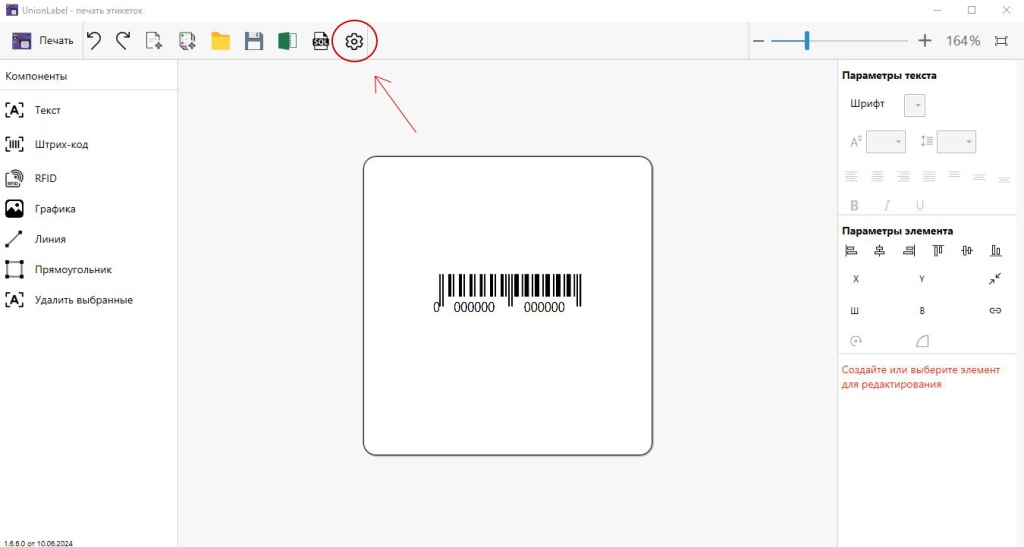
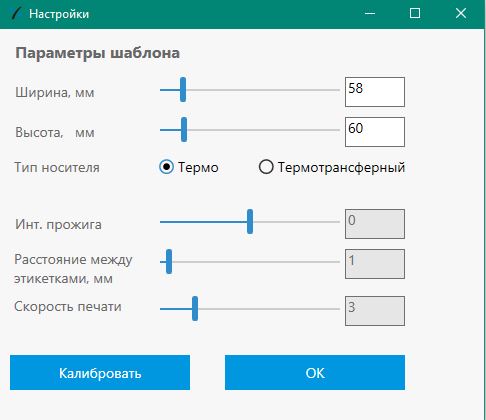
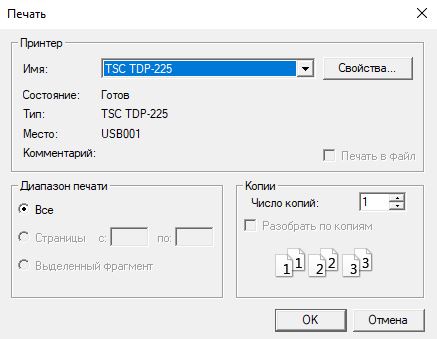
Union Label is designed to print on printers such as GoDEX, TSC, Bixolon, Honeywell, BSmart, Printronix, Mertech, URSA, iDPRT and Zebra. If necessary, you can configure your printer automatically using our software.
To do this, you need to run the program and perform a number of actions:
 EN
EN
 CN - 中國
 TR - Türkiye
 ES - español
 DE - Deutsch
 FR - France
 UZ - O'zbekiston
 TJ - Точикистон